WordPress Blocks: The New Editor Of WordPress EXPLAINED - Best Webhosting
Thanks! Share it with your friends!
 ULTRAFAST, CHEAP, SCALABLE AND RELIABLE! WE STRONGLY RECOMMEND ACCU
WEB HOSTING COMPANY
ULTRAFAST, CHEAP, SCALABLE AND RELIABLE! WE STRONGLY RECOMMEND ACCU
WEB HOSTING COMPANY
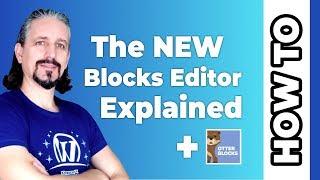
Watch Wordpress ThemeIsle Video: WordPress Blocks: The New Editor Of WordPress EXPLAINED.
If you are struggling to understand how to use WordPress Blocks, you are in the right place.
Here is how it works step by step.
1. What are WordPress Blocks? - 0:50
2. How can I use WordPress Blocks? - 1:30
3. Can I have more MordPress Blocks? - 6:14
I illustrate the editor’s key features by walking you through what it’s like to create a basic WordPress post, but you can use the same approach no matter what type of content you’re creating.
The WordPress theme I use in this video is Neve, a super fast and featherweight theme which works perfectly with WordPress blocks.
Download Neve: https://themeisle.com/themes/neve/
And even more, I will introduce you Otter, a WordPress plugin that comes with new feature-rich blocks to enhance your content creation experience.
Download Otter Blocks: https://wordpress.org/plugins/otter-blocks/
Blocks are the new way in which WordPress organizes the content inside your blog posts and pages.
If you create a new post, for example, you’ll see this content editing panel that’s block-based instead of what was previously there.
Compared to its predecessor, this new block editor is a huge upgrade.
The editing experience is distraction-free and much more streamlined.
This is because you only see the main canvas and no other unnecessary elements.
The first thing you’ll want to do is give your post a title, using the dedicated field at the top of the editor.
This works exactly the same way as it did in the classic editor. After that, however, things start to change.
If you hover over the area directly below your post’s title, you’ll see a few icons.
The Plus icon lets you select WordPress blocks and add them to your post. On the right, there are also options to quickly add the most commonly-used blocks – the text, image, and gallery options.
For now, click on the Plus icon, and you’ll see a new menu.
This menu lists out all the blocks that the editor currently includes.
There’s a section at the top with your own Most Used options, a number of organized categories underneath, and even a search bar to help you find what you need quickly.
If you have installed the Otter plugin, you can see even more blocks here. I'll show you more details later in this video, so keep watching.
To add a block to your post, you just have to find and click on it.
Let’s start simple, with a Paragraph block. Place the block in your post, then move to the next step.
You can also create a paragraph block by simply typing in the editor, which is the default block actually.
When you add a paragraph block, it doesn’t look like much right away. However, once you begin to start typing into the field, new options will appear.
You’ll see some basic formatting settings, such as alignment, bold, and italics. In addition, check out the right-hand sidebar of the editor screen.
There, you’ll find more block-specific options.
In this case, you can change the text’s font size and color, add a drop cap, and even include some custom CSS in the Advanced menu.
Any changes you make, either here or on the block itself, will be immediately visible.
What I like about the new block editor is that it lets you set a different background color for each block. This can be useful if you want to highlight specific sections, for example.
Each one of the WordPress blocks on offer comes with its own unique settings.
Furthermore, if you hit Enter, you’ll add a new block below your paragraph block. However, this time you can try adding an image block by using that same plus sign.
As you can see, you’re able to upload an image or add one that’s already in your Media Library. You can edit the image, alter its alignment, and so on.
As an alternative to hitting the Plus sign, you can type a “/” in an empty block followed by the name of the block that you want to insert.
Once you learn which blocks are available, this is a much faster way to add new blocks.
Website → https://themeisle.com
WordPress Articles → https://themeisle.com/blog/
Facebook → https://www.facebook.com/themeisle/
ThemeIsle is the go-to source for the High-Quality WordPress Themes (both free & premium), and plugins every website owner needs. We're passioned about all things WordPress, but we're not afraid to tackle other web related subjects. Our goal is to give those websites easy-to-use themes and designs that can be managed by everyone.
Related Videos
-
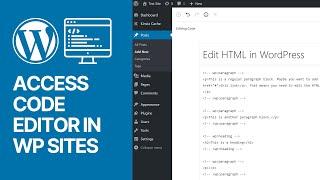
How To Access Code Editor in WordPress Latest Versions (Blocks Editor & Gutenberg)
Added 38 Views / 0 LikesIn today's video tutorial, we'll learn how to access and change codes view of content on the WordPress code editor using the latest versions of WordPress (Block editor and Gutenberg) in a simple, fast, and effective method. Download WordPress themes and plugin free https://visualmodo.com/borderless/ How To Reverse Reorder WPBakery Columns on Mobile - WordPress Page Builder Plugin Tutorial Secrets 📱 https://www.youtube.com/watch?v=rqB9gqu8B3s How and W
-
Popular

WordPress: Standard Gutenberg Blocks Explained
Added 152 Views / 0 LikesSince we prepared our WordPress theme "Pukeko" to support the Gutenberg plugins (version 2.8), I created a little video to show you all currently available standard Gutenberg blocks. I really like the new editing experience Gutenberg offers already. What are your thoughts on the upcoming changes to WordPress that Gutenberg will bring: Are you excited? Do you have questions? Please let me know in the comments below! -- Helpful Links from the Video: Gut
-
Popular

How to disable Gutenberg blocks in WordPress using the Classic Editor plugin
Added 149 Views / 0 LikesIf you're looking for a way to disable the Gutenberg block editing experience in WordPress, you can use the Classic Editor plugin readily available at: https://wordpress.org/plugins/classic-editor/ 00:49 Tutorial starts Learn more: https://plugintut.com Subscribe! https://plugintut.com/subscribe Follow us! http://twitter.com/plugintut Like us! http://facebook.com/plugintut
-
Popular
WORDPRESS GUTENBERG Editor Deaktivieren: BESTE 2 Möglichkeiten | Classic Editor & Disable Gutenberg
Added 170 Views / 0 Likes• GRATIS Buch: 98,5% der Websites sind erfolglos! So machst Du es RICHTIG: https://wperfolg.de/7wsgyt • Neue & simple 10 Schritte Insiderstrategie für Profi-Websites: https://wperfolg.de/l/training-yt • Aufklappen für Infos, Bonis, Tools + Community • • Videoinhalt • Teile jetzt das Video "WordPress Gutenberg Editor Deaktivieren in 2019: Die 2 simpelsten Möglichkeiten mit Plugin - Auf Deutsch" mit deinen Freunden! :) Viel Spaß & maximalen WordPress Er
-

What Are WordPress Blocks And Block Patterns? Everything You Need To Know!
Added 57 Views / 0 LikesThe WordPress editor is changing in exciting new ways. Content is now organized in Blocks, and you can make collections call Block Patterns. We'll take a look at how they work and where to find interesting new Patterns. - Interested in learning more about WordPress? Check out https://winningwp.com for all kinds of tips, tricks, beginner guides, deals and resources! - Guide to Choosing the Best WordPress Hosting: https://winningwp.com/best-wordpress-ho
-
Popular
How to Create Reusable Blocks in WordPress
Added 104 Views / 0 LikesIn today’s video, we cover how to create reusable blocks in WordPress. Blog post: https://www.elegantthemes.com/blog/wordpress/wordpress-reusable-blocks Like us on Facebook: https://www.facebook.com/elegantthemes/
-
Popular

WordPress: Reusable Gutenberg Blocks
Added 157 Views / 0 LikesIn this little tutorial quickly show you the concept of Reusable Blocks (or Saved Blocks) in the upcoming new WordPress Gutenberg editor (version 2.0). What do you think of reusable blocks? And what are your ideas of on how to use them or develop them further? Please let me know your thoughts in the comments below :) -- Helpful Gutenberg Links: Gutenberg Info on WordPress.org: https://wordpress.org/gutenberg/ Gutenberg Plugin: https://wordpress.org/pl
-
How to Add or Remove Blank Space Between WordPress Blocks
Added 73 Views / 0 LikesWordPress's Block Editor makes it incredibly easy to create beautiful pages. However, it still has 1 critical flaw. It does not allow you to manages spaces between blocks effectively. In this video, I'm going to tackle that problem and show you exactly how to add, remove, and manage spaces between WordPress blocks. ⚡Use Promo Code WPBVIP⚡ ►Best WordPress Contact Form Plugin https://wpforms.com/wpbeginner ►Best WordPress Analytics Plugin https://www.mo
-
WordPress Tutorial: Reusable Blocks (for Beginners)
Added 91 Views / 0 LikesA reusable WordPress block can be simple, such as a button that you’d like to reuse again and again. On the other hand, a reusable block could include a complicated collection of elements for duplicating more advanced web designs. Technically, you could save an entire page design as a reusable block and transfer it to other pages or websites. But how do you make these blocks? To begin the process, create a new post or page in your WordPress dashboard.
-
Popular

WordPress: Alle Gutenberg Blocks erklärt
Added 142 Views / 0 LikesUm einen etwas tieferen Einblick in den kommenden neuen Gutenberg Editor für WordPress zu geben, zeige ich in diesem Video alle Blocks und ihre Funktion Schritt für Schritt. --- Hilfreiche Gutenberg Editor Links: Gutenberg kurz vorgestellt: https://youtu.be/_bl_UmsOB9w Gutenberg im WordPress.org Plugin-Verzeichnis: https://wordpress.org/plugins/gutenberg/ Frontend Test Version von Gutenberg: https://frontenberg.tomjn.com/ Das Gutenberg Handbook: https
-

WordPress Tutorial: How to Edit Reusable Blocks
Added 63 Views / 0 LikesReusable blocks are my favorite part of the new Gutenberg WordPress editor. Let's dive in with a quick tutorial showing you how to create them, and how to edit your reusable blocks in one spot, just like you would a WordPress page or post. Use the chapters below to follow along! Intro - 00:00 Create reusable block - 00:35 How to edit reusable blocks - 01:16 Add the block to a new page - 02:36 How to add reusable blocks menu - 03:15 Now take action - 0
-
Popular

WordPress 5.4 Beta: Testing Features and Preview of the New Blocks
Added 113 Views / 0 LikesWelcome to WordPress news. My name is Robert and I remember the day somewhere in 2011 when I was started using WordPress. It was exactly what I was looking for. A free content management system, easy to use and ready to go in no time. The way we create and manage WordPress websites has changed dramatically, since then. This was the dashboard of version 3.1 and if I compare that with today's version, you can see a big difference. It was a nightmare to