Wordpress
-
02:43 Popular
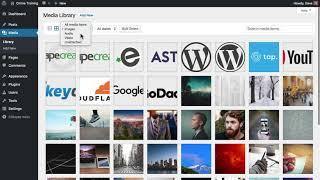
Understanding the WordPress Media Library
Added 147 Views / 0 LikesA brief overview of the WordPress Media Library, which is where all image editing takes place. How to Access the Media Library 1. Login to your WordPress site (yoursite.com/wp-admin/) 2. Navigate to Media • Library What is Stored in the Media Library You should use the Media Library for all of your site’s assets. This includes: - images - PDFs - other documents (Word, Excel, Powerpoint, etc.) - audio files Video files can be uploaded to your Media Lib
-
01:55 Popular
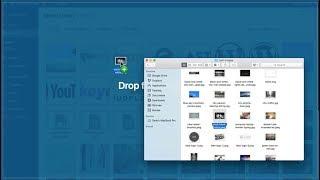
How to Upload Images to WordPress
Added 120 Views / 0 LikesThis lesson shows you multiple ways to upload files to your WordPress site. There are two main ways to upload files: 1. Drag’n’drop 2. Use the file uploader Drag’n’drop Make sure your Media Library is in grid view. Simply locate the file (or files) on your computer, click, hold and drag them into the Media Library window. This works for both single & multiple files, and also works when you’re editing any post or page on your site. File Uploader 1. Nav
-
01:15 Popular

Overview of the WordPress Image Editing Screen
Added 121 Views / 0 LikesHere's a quick look at the WordPress image editing screen. I'll show you where everything is located, so that in the next chapter, you can jump right in and start editing your images.
-
01:47
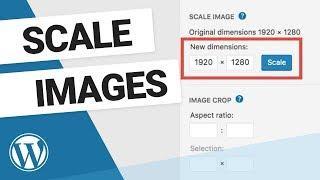
How to Scale Images in WordPress
Added 94 Views / 0 LikesLearn how to scale an image in WordPress (aka: make an image smaller without changing it's overall appearance). Great for reducing file size & increasing performance. What does it mean to “scale” an image? - reduce the overall size, but retain the aspect ratio - all visual parts of the image remain intact - reduce the file size, which improves site performance IMPORTANT! Always scale your image first, before making any other edits to it. This is why w
-
02:41 Popular

How to Crop Images in WordPress
Added 111 Views / 0 LikesLearn the 3 ways to crop images in WordPress: 1. freehand with your cursor 2. enter an aspect ratio (16:9) 3. use exact pixel dimensions Crop Images Freehand *Important: You have to select an area on your image first, before the crop button becomes available. Click & hold down your mouse, drag an area overtop your image, and release. Now you can move that rectangle around, or simply click the crop button to crop it. Crop Images by Aspect Ratio If you’
-
00:43

How to Rotate Images in WordPress
Added 93 Views / 0 LikesLearn how to rotate WordPress images clockwise or counter-clockwise. Great for switching between landscape & portrait modes.
-
01:05

How to Flip Images in WordPress
Added 88 Views / 0 LikesLearn how to flip images in WordPress, over their vertical or horizontal axis to change the image's perspective. Flipped images work really well when you have an image that you’re using in conjunction with other text, especially calls-to-action. You can experiment with flipping vertically and horizontally until you reach the desired effect. Don’t forget about the Undo & Redo buttons, either. They can be used for all types of WordPress image edits, not
-
00:57 Popular

How to Restore an Original Image in WordPress
Added 101 Views / 0 LikesMake a mistake while editing? No problem! I'll show you how to revert back to the original image in WordPress. You can restore any WordPress image back to its original version at any time. If at any time you want to revert back to the original image that you uploaded, you can do so easily with the Restore Image button. This will bring back your original image, before you made any edits to it. Remember: If you’ve already inserted this image elsewhere o
-
02:00 Popular
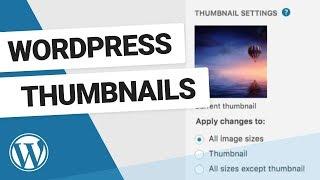
How to Edit WordPress Thumbnails
Added 116 Views / 0 LikesWhat are WordPress image thumbnails and how can you edit just a thumbnail without editing the entire image? A few things to remember when editing image thumbnails in WordPress: Different WordPress themes use thumbnail images in different ways By default, WordPress thumbnails are a square (aspect ratio of 1:1) You can edit your default thumbnail size & crop options by going to Settings • Media.
-
01:38 Popular

How to Replace a WordPress Image & Keep the File Name
Added 145 Views / 0 LikesLearn how to replace an image in WordPress but keep the same file name. This also works for PDFs, as well as other file types. Replacing WordPress images can be helpful if you use images from a user interface, such as when writing tutorials or how-to articles. If the UI changes, you don’t want to have to go through each of your help articles and insert a new image with the updated UI. Similarly, if you run an WooCommerce store, you might have inserted
-
02:55 Popular
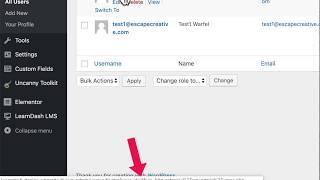
How to Find a WordPress User ID (2 Simple Methods)
Added 151 Views / 0 LikesI'll show you 2 simple ways to find a WordPress User ID. You might need this ID to provide access via a membership plugin, LMS, or for other reasons. By default, the WordPress user ID is not clearly shown on the All Users screen. Here's how you can find it: 1. Navigate to Users → All Users 2. Hover over the username 3. Look in the bottom corner of your browser for a URL 4. In this URL, look for "user_id=X" 5. X is the user ID. It will always be a numb
-
05:52 Popular
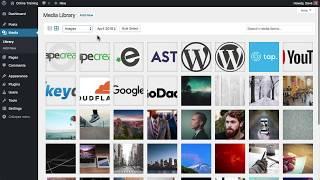
WordPress Media Library Basics: What It Is & How to Use It
Added 117 Views / 0 LikesLearn all about the WordPress Media Library: what it is, how to navigate it and the beginner steps to editing images in WordPress. This WordPress mini course will take you through 3 aspects of the Media Library: - A basic overview of what it is used for - How to upload images (and other media) to WordPress - The basics of the "Edit Image" screen After this, you'll be ready to edit images directly in WordPress, before you add them to your site. WRITTEN
-
10:47 Popular

WordPress Image Editing: How to Crop, Scale, Rotate, Flip, Resize & Restore Images
Added 123 Views / 0 LikesFollow along as we answer all your questions related to editing images in WordPress. We'll show you how to crop a WordPress image, as well as scale, rotate, flip, restore, delete and replace one. You'll also learn how to edit the thumbnail only, or edit the main image and leave the thumbnail untouched. In this video, we'll cover the following ways to edit images in WordPress: 1. Scale 2. Crop 3. Rotate 4. Flip (horizontally or vertically) 5. Restore t
-
04:52 Popular

How to Update PHP Version in GoDaddy (Managed WordPress Hosting)
Added 254 Views / 0 LikesRunning an older version of PHP on your WordPress site? If you're hosting with GoDaddy, I'll show you how to update your PHP version using GoDaddy's managed WordPress dashboard. As of February 25, 2019, GoDaddy offers PHP 7.2, 7.1 and 7.0. I HIGHLY RECOMMEND you use 7.2, and then switch to 7.3 as soon as it's available. Updating to PHP 7.2 will provide significant performance improvements, as well as keep your site secure. In this video, I show you ho
-
05:32 Popular
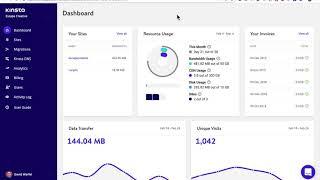
How to Update PHP Version with Kinsta WordPress Hosting
Added 152 Views / 0 LikesRunning an older version of PHP on your WordPress site? If you're hosting with Kinsta, I'll show you how to update your PHP version using their simple tools. Kinsta offers PHP 7.3, 7.2, 7.1 and 7.0. I HIGHLY RECOMMEND you use 7.3, but 7.2 is also OK. Updating to PHP 7.3 will provide significant performance improvements, as well as keep your site secure. In this video, I show you how to run some tests before updating, and then use Kinsta's custom dashb
-
05:53 Popular

How to Update PHP Version in SiteGround (with cPanel)
Added 162 Views / 0 LikesRunning an older version of PHP on your WordPress site? If you're hosting with SiteGround, I'll show you how to update your PHP version using cPanel in SiteGround. SiteGround offers PHP 7.3, 7.2, 7.1 and 7.0. I HIGHLY RECOMMEND you use 7.3, but 7.2 is also OK. Updating to PHP 7.3 will provide significant performance improvements, as well as keep your site secure. In this video, I show you how to run some tests before updating, and then use SiteGround'
-
05:09 Popular
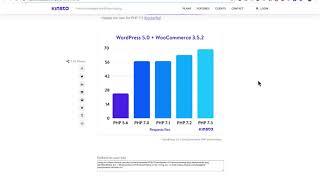
How to Update PHP Version in WP Engine
Added 127 Views / 0 LikesRunning an older version of PHP on your WordPress site? If you're hosting with WP Engine, I'll show you how to update your PHP version in WP Engine's custom dashboard. As of February 25, 2019, WP Engine only offers up to PHP 7.2. I'm hoping they will add PHP 7.3 soon, as it is even faster than 7.2. I HIGHLY RECOMMEND you use 7.2, and 7.3 when it becomes available. Updating to PHP 7.2 will provide significant performance improvements, as well as keep y
-
31:11 Popular
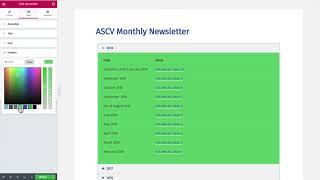
Build a WordPress Site with Elementor Page Builder: The Basics
Added 130 Views / 0 LikesLearn how to build a WordPress site using the Elementor page builder. I'll cover the basic widgets in Elementor's free version, convert a few pages over to the page builder, and show you around the interface. You'll learn how to use the WordPress text widget, as well as an image widget and accordion widget. Learn about custom backgrounds, typography, colors, padding, margins & more. GET ELEMENTOR • https://wpsmackdown.com/out/elementor/ (aff link)
-
19:15 Popular

Build a Custom Homepage using Elementor Page Builder (for WordPress)
Added 148 Views / 0 LikesFollow along as I build a custom homepage using the Elementor page builder for WordPress. You'll learn backgrounds, shape dividers, how to create an image slider, headers, buttons and more. - learn typography, font sizes, line height, etc. - learn about spacing: padding & margins - how to utilize different page templates, to start with a blank canvas - learn how to use columns & rows to create boxes I'll also cover mobile styles to make your site resp
-
05:35 Popular

How to Create a New WordPress Installation in WP Engine
Added 125 Views / 0 LikesIn this tutorial, we're going to create a new WordPress website installation in the WordPress hosting provider, WP Engine. Subscribe to our Newsletter for hosting deals & coupons: http://eepurl.com/bCkDxb
-
05:04 Popular
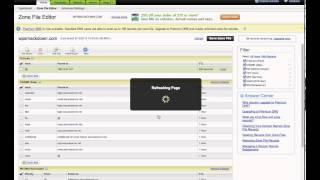
How to Update DNS Settings in GoDaddy for your WordPress Site
Added 112 Views / 0 LikesIn this tutorial, we're going to show you how to modify your DNS settings, by updating your domain's A record with the IP address given to you by your hosting provider. In our case, we host our WordPress website with WP Engine and our domain registrar is GoDaddy.
-
08:47
How to Add HTML Table Buttons in TinyMCE - WordPress Plugin Review
Added 89 Views / 0 LikesLearn how to add HTML table buttons to the TinyMCE editor in WordPress with the MCE Table Buttons WordPress plugin by Jake Goldman. This lightweight plugin adds buttons for table editing to the WordPress TinyMCE WYSIWYG editor.
-
00:43
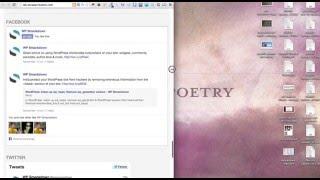
Responsive Facebook Like Box in WordPress
Added 63 Views / 0 LikesA demo video of how to make a Facebook Like Box responsive using the Jetpack widget. Full details & a tutorial can be found here: http://wpsmackdown.com/responsive-facebook-like-box-wordpress/
-
05:37 Popular
How to Bulk Install WordPress Plugins w/ WPCore
Added 124 Views / 0 LikesWith WPCore, you can batch install tons of WordPress plugins at one time. We all use some of the same plugins with every new install of WordPress, so why not save some time and install them in one shot. Signup for Free: https://wpcore.com/ref/escapecreative
-
03:16 Popular
![How to Install Google Tag Manager on Your WordPress Site [TUTORIAL]](https://video.bestwebhosting.co/uploads/thumbs/c555a1888-1.jpg)
How to Install Google Tag Manager on Your WordPress Site [TUTORIAL]
Added 144 Views / 0 LikesGoogle Tag Manager (GTM) is a small piece of code that you can add to your WordPress site that allows you to add various other tracking scripts, remarketing tags, etc. to your site, all through an easy-to-use interface. Setup Google Tag Manager one time, and then add unlimited scripts to your website without ever touching another line of code. Pretty awesome, right? Especially for marketers and less technical site owners, GTM can provide immense value
-
04:17 Popular

How to Add Google Analytics Tracking with Google Tag Manager
Added 169 Views / 0 LikesIf you're not using Google Analytics already, I highly recommend you start. It’s an incredibly valuable tool, and it’s 100% free. In this video, we'll show you how to setup Google Analytics tracking using Google Tag Manager in 5 easy steps. First, you need to install Google Tag Manager: https://www.youtube.com/watch?v=v55O8Eo6QPM Then... 1. Choose your Container 2. Create a new tag - Click “Create a new tag” - Give your tag a name (Used for internal p
-
01:18
What's New in WordPress 4.4 - New Features Montage
Added 86 Views / 0 LikesThis quick little video highlights the new features in WordPress 4.4. WordPress 4.4 "Clifford" was released on December 8th, just a few short weeks after WordPress unveiled it’s Calypso project. With Calypso, WordPress is making a huge move to more of a javascript-based application framework. And with the WordPress REST API being added to Core in 4.4, many developers are excited for what the future has in store. In addition to the REST API making it’s
-
05:30
A How-To Guide to WordPress oEmbeds (updated WordPress 4.4)
Added 62 Views / 0 LikesWordPress oEmbeds were first introduced in version 2.9. Up until now, there were only about 25 oEmbed providers that WordPress allowed you to embed content from. With the release of WordPress 4.4, you can now embed content from anyone who supports the official oEmbed protocol (and meets security requirements). In this video, I'll walk you through the 2 ways to embed content on your WordPress site, and explain the differences between the two methods. O
-
01:31
WordPress Permalinks Updated in WordPress 4.4
Added 60 Views / 0 LikesThe permalinks on the Edit screen in WordPress 4.4 have changed. In this video, we compare the the old permalink style with the new style in WordPress 4.4. You might also like our video montage of the new features in WordPress 4.4, including the updated permalinks. https://www.youtube.com/watch?v=lBVSTcHV4go Twitter: https://twitter.com/wpsmackdown Facebook: https://www.facebook.com/wpsmackdown
-
01:08 Popular

NO WordPress oEmbed - Just Insert a Clickable Link
Added 137 Views / 0 LikesAfter we posted our video about how to use WordPress oEmbeds in version 4.4 (https://www.youtube.com/watch?v=jX38T-ZmATI), one of our viewers had a question about how to NOT enable the embeds. Specifically, if you have a website that supports oEmbed, and you just want to insert hyperlinked text in the post editor -- NOT automatically an embed -- how do you do that? You can use the "Insert Link" button in the editor toolbar. Just enter the URL for both