ThemeIsle
-
01:34 Popular
![Gutenberg Blocks And Template Library By Otter [NEW Block-Enabled Plugin]](https://video.bestwebhosting.co/uploads/thumbs/45ea3039e-1.jpg)
Gutenberg Blocks And Template Library By Otter [NEW Block-Enabled Plugin]
Added 152 Views / 0 LikesDownload Otter: https://wordpress.org/plugins/otter-blocks/ Otter: Blocks for Gutenberg is a lightweight WordPress plugin that brings extra Gutenberg blocks to your site. So if you want to create complex pages and posts optimized for e-commerce, business, social media, blogs - you name it - Otter is coming with many modern blocks. A feature that is worth mentioning is the Section Block that allows you to build columns and various layouts in Gutenberg.
-
13:13 Popular
WordPress Blocks: The New Editor Of WordPress EXPLAINED
Added 122 Views / 0 LikesIf you are struggling to understand how to use WordPress Blocks, you are in the right place. Here is how it works step by step. 1. What are WordPress Blocks? - 0:50 2. How can I use WordPress Blocks? - 1:30 3. Can I have more MordPress Blocks? - 6:14 I illustrate the editor’s key features by walking you through what it’s like to create a basic WordPress post, but you can use the same approach no matter what type of content you’re creating. The WordPre
-
26:03 Popular
![Build A Landing Page With WordPress Using The Block Editor [Gutenberg]](https://video.bestwebhosting.co/uploads/thumbs/35a22ca79-1.jpg)
Build A Landing Page With WordPress Using The Block Editor [Gutenberg]
Added 140 Views / 0 LikesLearn how to build a landing page with WordPress in under 30 minutes by using the new block editor of WordPress (Gutenberg) Download Neve here: https://bit.ly/2Q0Mx9t Download Otter here: https://bit.ly/2IRvnwh Combine it with templates and block friendly layouts that can be customized with no efforts, offered by Otter. Step by step landing page: Step 1 - Install Neve WordPress Theme 0:35 Step 2 - Install Otter Blocks 1:10 Step 3 - The first section (
-
03:31 Popular

Hestia Big Title Section Tutorial: Height And Opacity Options
Added 138 Views / 0 LikesIf you'd like to make the header image in your Hestia Big Title Section take up the entire height of your browser, follow the step by step instructions in this video. Also, if you want a Big Title Section with no opacity over the image, you have two options: 1. For HESTIA Pro users: 1:28 2. For HESTIA Free users: 1:55 Documentation: 1. Header Height: https://bit.ly/2Nq3YjS 2. Header Opacity: https://bit.ly/2IKu56a Download HESTIA Pro here: https://bit
-
18:26 Popular
Neve WordPress Theme Tutorial: How To Use Neve Step By Step
Added 158 Views / 0 LikesYou are watching the Neve WordPress theme tutorial. Download Neve: https://bit.ly/2Q0Mx9t This video shows you how to customize the Neve WordPress theme and even how to make it look like the demo. Table of contents: Step 1 - Download & install Neve 0:48 Step 2 - Change Neve settings 2:56 Recommended actions: 11:36 Step 3 - Importing full websites 12:52 Step 4 - Frontpage Setup 14:10 Step 5 - Setting up the subscribe section 16:37 BONUS Step: How Neve
-
02:05 Popular
What’s New in Hestia 2.0?
Added 126 Views / 0 LikesIntroducing Hestia 2.0: check all the new features, a remaster of our popular material design WordPress theme. Download Hestia here: http://bit.ly/2NHHmLF Check the demo site templates: - Coffe Shop: https://themeisle.com/demo/?theme=Hestia%20Coffee%20Shop - Vet Center: https://themeisle.com/demo/?theme=Hestia%20Vet%20Center - Travel: https://themeisle.com/demo/?theme=Hestia%20Travel - Energy Panels: https://themeisle.com/demo/?theme=Hestia%20Energy%2
-
07:02 Popular

Hestia Very Top Bar Configuration. Step By Step Tutorial
Added 136 Views / 0 LikesThe very top bar of your Hestia WordPress theme can be used to display useful information like your phone number, email, social media icons, links, simple text and so on. You can do this in Hestia Lite: https://bit.ly/2jLrV9C and also in Hestia PRO: https://bit.ly/2Sldq93 Layout and Color Settings are available only for PRO users, as you can see in the video above. Table of contents: 1. Creating the very top bar menu - 00:30 2. How to set up Social Me
-
03:50 Popular
Hestia Header: Post Header Height Settings + Metadata & Title Removal
Added 125 Views / 0 LikesThe Hestia header height, on posts, can be adjusted through the Customizer. (Download HESTIA here: https://bit.ly/2jLrV9C) You can also learn how to remove the metadata and how to get rid of the title for posts and pages too. Get the header height adjustment code: https://bit.ly/2Hv7glI Get the metadata and title removal codes: https://bit.ly/2JjRNqo Table of contents: 0:39 Header height adjustment 1:29 Title & metadata removal 2:25 Page title on a si
-
08:09 Popular
![Block Editor [Gutenberg] VS Elementor VS Divi: Quick Comparison](https://video.bestwebhosting.co/uploads/thumbs/0b9e1753e-1.jpg)
Block Editor [Gutenberg] VS Elementor VS Divi: Quick Comparison
Added 164 Views / 0 LikesIn this video, I'll answer some questions you may have about the Block Editor (aka Gutenberg) vs Elementor vs Divi builder. (Get Elementor: http://bit.ly/DownloadElementor) 1. The Block Editor (Gutenberg) + Otter Blocks 0:21 • Download Otter Blocks here: https://bit.ly/2IRvnwh Download NEVE here: https://bit.ly/2Q0Mx9t While the new Gutenberg block editor does bring more visual design and drag-and-drop editing, it’s not exactly a replacement for page
-
08:37 Popular
![Best Block Plugins For WordPress: Expand Your Block Editor [Gutenberg]](https://video.bestwebhosting.co/uploads/thumbs/cdd4d8610-1.jpg)
Best Block Plugins For WordPress: Expand Your Block Editor [Gutenberg]
Added 170 Views / 0 LikesThere are already a lot of solutions available to expand the new editor’s capabilities. Download Otter Blocks: https://bit.ly/2IRvnwh Now that Gutenberg has morphed into the WordPress Block Editor as of WordPress 5.0, many people are excited to start building content with this new tool. Most of the best block plugins for WordPress are turning out to be collections of elements, rather than single-block additions. 1. Install Atomic Blocks 00:24 • Atomic
-
01:02 Popular

Welcome To Visualizer: Tables And Charts Manager Plugin For WordPress
Added 136 Views / 0 LikesEmbed responsive and interactive tables and graphs to any WordPress post or page. Download Visualizer: https://bit.ly/2D5Fo3J A simple and powerful WordPress plugin to create tables and charts. 1. Import data from CVS and Google Spreadsheets: Quickly import the data source from existing spreadsheets or previously created charts. 2. Customize the charts: Each chart can be styled to match the look and feel of your website. 3. Keep pages responsive: Char
-
00:51 Popular
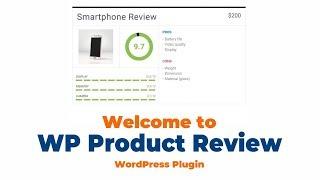
Welcome To Wp Product Review, The WordPress Plugin For Product Reviews
Added 147 Views / 0 LikesTurn your basic posts into in-depth reviews with ratings •, pros • and cons •, affiliate links •, rich snippets, and user reviews. Download WP Product Review here: https://bit.ly/2VBulGL This WordPress product review plugin helps you to interact with your users with improved comments, you can expose your reviews in an easier to read way and will help you generate money by adding a buy now button in your post. • Rich snippets are also supported. After
-
00:40 Popular

Welcome To Feedzy: RSS Feed Aggregator Plugin For WordPress
Added 138 Views / 0 LikesFeedzy RSS Feeds is an easy-to-use plugin giving you RSS aggregator and auto blogging functionality. Download Feedzy here: https://bit.ly/2W3wXxy It’s super easy to add feeds to your website pages. Look for the Feedzy RSS Feeds widget and add it to your page sidebar, slider or website footer. For posts, you can use the Feedzy block if you are using the block editor or the shortcode generator within the classic editor. Check out more videos about Feedz
-
01:46 Popular

What's New In Otter 1.2 (Gutenberg Blocks And Template Library)
Added 141 Views / 0 LikesDemo and Free Download: https://bit.ly/2IRvnwh Gutenberg Blocks and Template Library by Otter is a lightweight WordPress plugin that brings extra Gutenberg blocks to your site. If you want to create complex pages and posts optimized for e-commerce, business, social media, blogs – you name it -comes with dozens of Gutenberg blocks that are all you need to build beautiful pages. Website → https://themeisle.com WordPress Articles → https://themeisle.com/
-
03:55 Popular
![How To Create The Hestia Contact Form In Wp Forms [WordPress]](https://video.bestwebhosting.co/uploads/thumbs/56c5eea03-1.jpg)
How To Create The Hestia Contact Form In Wp Forms [WordPress]
Added 141 Views / 0 LikesAfter installing the Hestia WordPress theme (Download HESTIA here: http://bit.ly/2PrdQL0) you may end up with this "pirate forms" shortcode in the contact section on your front page, instead of the beautiful contact form you see on the demo page. So, what can we do to recreate that form and even make a custom one if needed? 0:30 First, install and activate the WP Forms plugin. Then go to All Forms over here and click on Add New. On the next screen, ty
-
03:54 Popular
Typography Options In Hestia Pro. Improve Your Site's Readability
Added 120 Views / 0 LikesIn the Appearance Settings / Typography options of your Hestia PRO WordPress theme (Get it here: http://bit.ly/HestiaPRO), you can see two tabs. 0:23 Let's see how you can use them properly. First, I will show you how to choose the perfect Headings Font Family in this drop-down and the Body font family over here. The Font Subsets I use is Latin but you can use any subset in the list below according to the required diacritic of your own language. Ok, n
-
05:03 Popular

Hestia & Elementor: How To Edit Or Recreate Hestia With A Page-builder
Added 322 Views / 0 LikesWhen using the Hestia theme (Download Hestia: http://bit.ly/HestiaFREE) on your WordPress website, you can edit the content on the front page with a page builder like Elementor only if the About section is enabled. Get Elementor: http://bit.ly/DownloadElementor More of that, if using the Pro version of the theme (Download Hestia PRO: http://bit.ly/HestiaPRO) you can clone the entire page with the same page-builder, section by section. 1. Clone Hestia
Featured -
54:00 Popular
![Recreate The Asos Website With Neve, Elementor & Gutenberg [homepage]](https://video.bestwebhosting.co/uploads/thumbs/d6effb8e5-1.jpg)
Recreate The Asos Website With Neve, Elementor & Gutenberg [homepage]
Added 105 Views / 0 LikesYou can recreate almost any website you see on the Internet by using a free WordPress theme and Elementor. Here is how to build the homepage of the ASOS website. The tools we used to make this happen: • Neve WordPress theme: http://bit.ly/NeveWPTheme • Elementor PRO. Get it now: http://bit.ly/DownloadElementor • Get professional hosting from Siteground, with discount* - http://bit.ly/WPHostingOffer 1. Domain Wheel - https://domainwheel.com/ 2. Otter (
-
05:55 Popular

WordPress Product Review Plugin: Create Your First Product Review Box
Added 135 Views / 0 LikesIn this video, you're going to learn how to create your first product review box with the WP Product Review Lite plugin. (download link: http://bit.ly/WPProductReview) You can write different areas of a product add pros and cons lists and then use a nice big button to link visitors to where they can purchase the product. Here are the three steps that we'll cover in this video: 1. Install and activate the plugin 0:31 2. Add a product review box to blog
-
06:46 Popular

Best Free WordPress Themes (The Only Four You Will Ever Need)
Added 157 Views / 0 LikesThese are the best free WordPress themes you will ever need. I've personally installed and tested a lot of free WordPress themes but Neve, Hestia, OceanWP and Astra are simply the best. Which one is the best of the best this year? Let's check them out: 1. NEVE - (free download: http://bit.ly/NeveWPTheme) • 0:01 One of the best free WordPress themes you will ever need is Neve. An advanced and user-friendly theme packed with starter sites and proven per
-
45:09 Popular
![Recreate The Xiaomi Homepage With Neve & Otter Blocks [FREE Tools]](https://video.bestwebhosting.co/uploads/thumbs/ffebf0495-1.jpg)
Recreate The Xiaomi Homepage With Neve & Otter Blocks [FREE Tools]
Added 145 Views / 0 LikesYou can recreate almost any website you see on the Internet by using a free WordPress theme, WordPress blocks, and some custom CSS. Here is how to build the homepage of the Xiaomi website. Download Neve WordPress theme: http://bit.ly/NeveWPTheme The tools we used to make this happen: • Get professional hosting from Siteground, with discount* - http://bit.ly/WPHostingOffer • Neve theme mega menu: https://docs.themeisle.com/article/964-neve-mega-menu-se
-
01:00 Popular
![Neve 2.0: Introducing the Header and Footer Builder [NEW]](https://video.bestwebhosting.co/uploads/thumbs/89b5671db-1.jpg)
Neve 2.0: Introducing the Header and Footer Builder [NEW]
Added 132 Views / 0 LikesControl the NEW header and footer builder via de Live Customizer plus other improvement with the 2.0 version of Neve. • Download it here for FREE: https://goo.gl/j45o5D • Check the live demo: https://goo.gl/pY9QcW Whether you prefer simple, elegant or complex headers that demand action, explore a range of design options with components perfect for improved structure, findability, or conversions. Add menus, toss in a search bar, or tempt visitors with
-
08:03 Popular

Free WordPress Plugins: Awesome Plugins Built by ThemeIsle
Added 208 Views / 0 LikesCheck out 10 free WordPress plugins you must have in 2019 that are built and maintained by our developers at ThemeIsle. Ready for the Gutenberg editor and some can improve your website performance. 1. Gutenberg blocks & template library by Otter • 0:02 (free download: https://bit.ly/2F0POmr) One of the best free WordPress plugins you can get for improving your content creation experience is Otter Blocks. It enhances the new editor of WordPress (aka Gu
-
29:31 Popular

Rebuilding Spotify Homepage With Neve + Elementor
Added 108 Views / 0 LikesTo celebrate the launch of Neve PRO add-on, we are offering a 50% discount https://bit.ly/2Q0Mx9t You can recreate almost any website you see on the Internet by using a free WordPress theme, Elementor, and some custom CSS. Here is how to build the homepage of the Spotify website. Spotify.com is a music streaming service. The tools we used to make this happen: • Neve WordPress theme: http://bit.ly/NeveWPTheme • Get professional hosting from Siteground,
-
1:02:31 Popular
Rebuilding Oculus Homepage With Neve + Elementor
Added 129 Views / 0 LikesGet 50% OFF Neve PRO add-ons: http://bit.ly/NevePROAddon You can recreate almost any website you see on the Internet by using Neve Pro and Elementor. Here is how to build the homepage of the Oculus website. The tools we used to make this happen: • Neve WordPress theme: http://bit.ly/NeveWPTheme • Get professional hosting from Siteground, with discount* - http://bit.ly/WPHostingOffer • Elementor Pro: http://bit.ly/DownloadElementor 1. Domain Wheel - ht
-
05:48 Popular
![Neve Header and Footer Drag-And-Drop Builder [NEW]](https://video.bestwebhosting.co/uploads/thumbs/376bf838b-1.jpg)
Neve Header and Footer Drag-And-Drop Builder [NEW]
Added 149 Views / 0 LikesThe latest update of Neve WordPress theme, adds a new versatile builder for the header and footer areas of your site. Download Neve (free) - http://bit.ly/NeveWPTheme With just a few drag-and-drops you can create your perfect header and footer. The header builder has three rows in which you can easily drag-and-drop and arrange the available components you can find at the bottom of the builder. Each component has specific options you can customize once
-
06:34 Popular
Neve Mega Menu Tutorial: Easy WordPress Mega Menu Without Plugin
Added 155 Views / 0 LikesWhen using Neve as your WordPress theme and you want to spice up your Primary Menu with a Mega Menu, then you should follow these steps: • Download the theme (free): http://bit.ly/NeveWPTheme We've made it easy to set up a basic mega menu within the theme itself by using CSS classes. • 0:23 - Start by accessing the Menus settings under Appearance on your dashboard, or go to Customizer, and then navigate to Menus. I stay on the dashboard where the firs
-
06:05 Popular
Hestia Custom Section Tutorial Step By Step With Shortcodes (FREE)
Added 173 Views / 0 LikesIf you think about adding a custom section to the homepage of your Hestia WordPress theme this video will teach you how. Download HESTIA: http://bit.ly/HestiaFREE You can do it for free by using shortcodes and some CSS. Tools and resources: 1. Shortcode Ultimate Plugin: https://bit.ly/1hVMasE 2. Documentation: https://bit.ly/2RxfzzN • 0:26 - First, you need to upload, install and activate the child theme of Hesia. It should be a zip file named hestia-
-
48:12 Popular
![How to Create a Website for Free [Guide For Business]](https://video.bestwebhosting.co/uploads/thumbs/d98169c9a-1.jpg)
How to Create a Website for Free [Guide For Business]
Added 119 Views / 0 LikesLearn how to create a website for a business with FREE WordPress tools. I’m going to show you how to get started building your very first site. You will walk through everything from buying a domain, to buying hosting to installing a theme and plugins, to importing page templates and then customizing them with Elementor. If you follow along, you’ll have your own website online in no time at all. The tools we used to make this happen: • Neve WordPress t
-
03:07 Popular

How To Create Buttons From Your WordPress Menu Items (Fast & Easy)
Added 130 Views / 0 LikesCreating buttons from your WordPress menu items is pretty simple. The first step you need to do is to go to your WordPress Dashboard, navigate to Appearance and then click on Menus. Ensure the CSS Classes option is enabled by opening the screen options and see if the CSS classes box is checked. A new option should now show up in your menus. Right there, enter a class of your choice and then click save menu. I will choose hestia-btn, for example. You c